Import notes
The Import Notes page lets you bulk-import notes from a text file — useful for migrating existing content or batch-creating a content backlog.
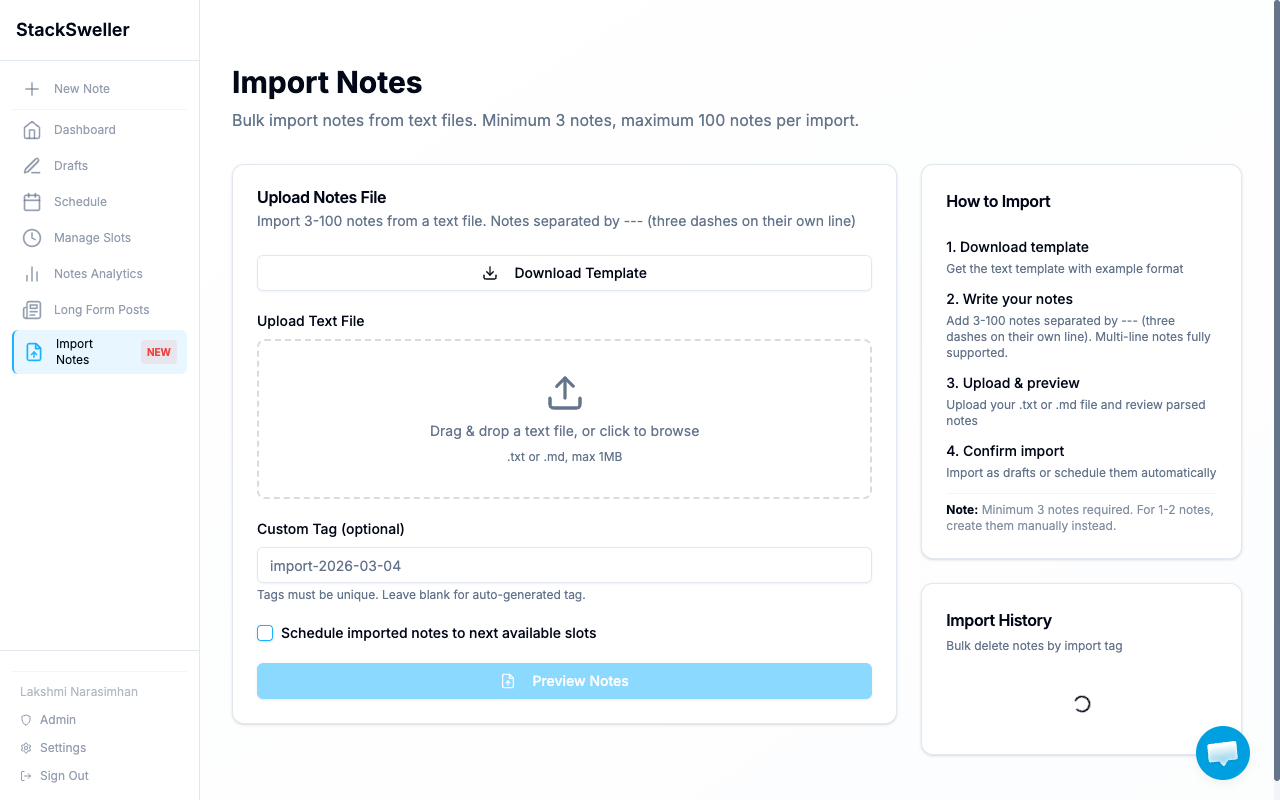
How to import
- Go to Import Notes in the sidebar
- Click Download Template to get the file format
- Add your notes to the template (notes separated by
---on their own line) - Upload the
.txtor.mdfile (max 1MB) - Optionally set a Custom Tag to label the batch
- Check Schedule imported notes to next available slots if you want them queued automatically
- Click Preview Notes to review, then confirm the import
File format
Your first note content here.
---
Your second note content here.
---
Third note.
Each note can span multiple lines. Minimum 3 notes, maximum 100 per import.
ℹ️ Note
For 1–2 notes, create them manually — the import requires a minimum of 3. Use the + New Note button for small batches.
After importing
Imported notes appear in your Drafts tab (or are scheduled automatically if you enabled that option). They’re tagged with your custom tag for easy filtering.